FREE ONLINE MICROPHONE TEST
Online Mic Test With Playback, Waveform & Loopback
Run a private online mic test in your browser to check input level, waveform, playback recording, and loopback monitoring. Choose an input device, download a short clip, or hear yourself with headphones. This Microphone Test is local-only and requires no install.
This Microphone Test is also known as an online mic test, microphone checker, mic check, loopback test, playback test, microphone volume meter, and microphone waveform tester.
REAL-TIME MICROPHONE TEST
Microphone Test: Input Meter & Waveform
This microphone
What this browser opened for the current test — session settings, not a factory spec sheet.
Start the test to read this microphone.
- Device
- —
- Sample rate
- —
- Channels
- —
- Sample size
- —
- Latency
- —
- Echo cancellation
- —
- Noise suppression
- —
- Auto gain
- —
OPTIONAL SETTINGS
Advanced Options & Recording
Tune getUserMedia constraints for this Microphone Test and (optionally) control recording time limits and playback.
Advanced OptionsApplied as getUserMedia constraints (may vary by browser/OS).
+
Applied as getUserMedia constraints (may vary by browser/OS).
Tip: If you change these while listening, restart the test to apply them.
Recording (Optional)Recording starts when you click Start. Download saves MP3 by default. Use the arrow for uncompressed WAV if you need a studio-style file.
+
Recording starts when you click Start. Download saves MP3 by default. Use the arrow for uncompressed WAV if you need a studio-style file.
Microphone Test Guide: Steps, Requirements & Troubleshooting
This Microphone Test runs locally in your browser to verify permission, input level, and real-time waveform response. Use the device selector to switch microphones, enable Loopback to listen (wear headphones), and download an optional recording to check playback quality. If you are troubleshooting a call setup, run the Microphone Test first to confirm the microphone works before opening Zoom/Meet/Discord. On a second screen, a black screen keeps desktop notifications out of the shot while you check the microphone.
Why run a Microphone Test?
- Confirm a new microphone works before a call, stream, or recording session.
- Find the correct input device when you have multiple microphones.
- Spot low volume, clipping, or Bluetooth “hands-free” mode quality drops.
How to use this Microphone Test
- Click Start and allow microphone permission.
- Speak and watch the volume meter and waveform react.
- Download a short clip (optional) to hear exactly how you sound.
Microphone Test troubleshooting checklist
- Permission blocked: allow microphone access (lock icon), then reload.
- No input: select another device, unmute, and increase system input level.
- Used by another app: close Zoom/Meet/Discord and Start again.
System requirements: a modern browser and HTTPS. If you are opening this in an in-app browser, try Safari or Chrome.
POPULAR MIC TESTS
Targeted mic tests for playback, loopback, and quick checks
These pages match the highest-signal search intents from real Search Console data: mic loopback test, mic test with playback, mic check online, browser permissions, meeting-call checks, Discord voice chat, and iPhone microphone troubleshooting. Each one uses the same live Microphone Test so you can validate the result immediately.
Speaker + Microphone Test
Test left and right speaker channels, select a microphone, watch live input, and record a local playback sample.
Mic Loopback Test
Run a mic loopback test online, hear your microphone through headphones, check delay and echo, and avoid feedback while troubleshooting input.
Mic Test With Playback
Run a mic test with playback, record a short local sample, listen to your microphone quality, and download the clip without uploading audio.
Mic Check Online
Run a quick mic check online to confirm your microphone is detected, input level is moving, and browser permission is working.
Mic Volume Test
Run a mic volume test online, watch your input level, catch low volume or clipping, and tune microphone gain before calls or recordings.
Microphone Quality Test
Run a microphone quality test online, record a private playback sample, and check clarity, noise, clipping, echo, and distance.
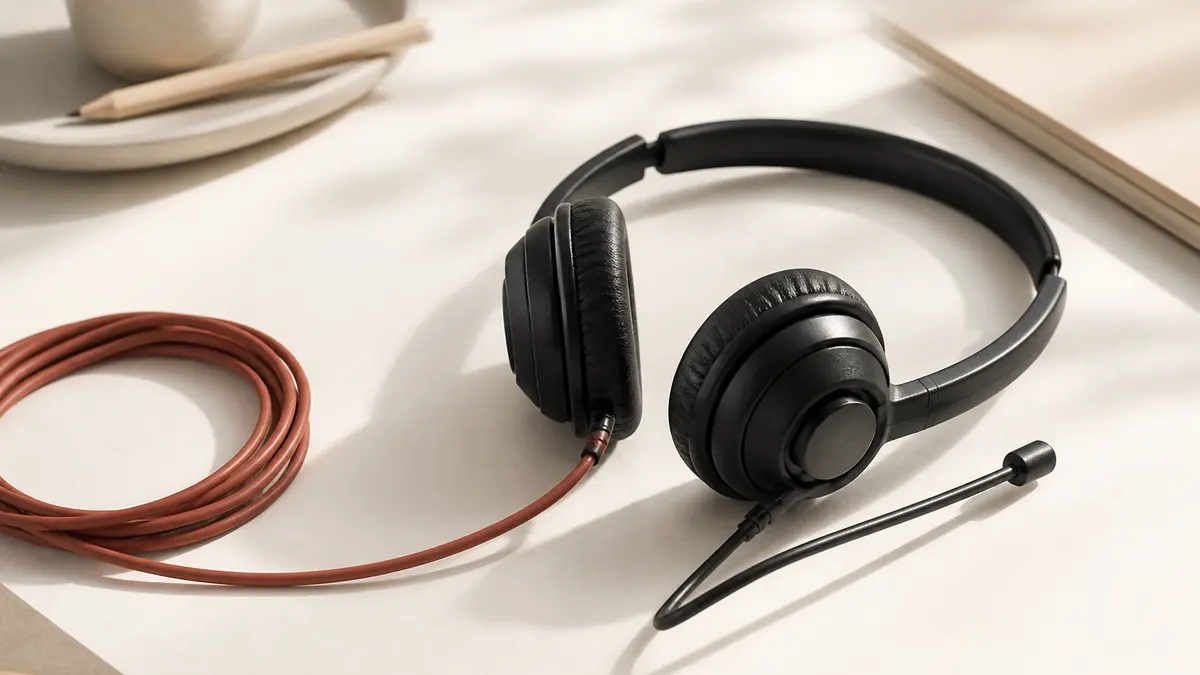
Headset Mic Test
Test a headset microphone online, confirm the right input is selected, check boom position, volume, mute controls, and playback quality.
Bluetooth Mic Test
Run a Bluetooth mic test online, check wireless microphone routing, delay, hands-free quality, volume, and playback before calls.
AirPods Mic Test
Run an AirPods microphone test online, check input selection, Bluetooth quality, volume, delay, and playback before calls or recordings.
Webcam Mic Test
Run a webcam mic test online to check camera preview, microphone level, device selection, and browser permission before video calls.
Browser Permission Guide
Learn how to enable microphone access in Chrome, Safari, Edge, and Firefox, then confirm it instantly with a live browser-based Microphone Test.
Windows 11 Mic Fix
Fix microphone not working on Windows 11 with a practical checklist for privacy settings, input selection, volume, headset jacks, USB mics, and drivers.
Zoom / Teams / Meet
Test your microphone before a Zoom, Teams, or Google Meet call with a fast pre-call routine for browser checks, device selection, playback, and app self-test.
Discord Mic Test
Use a Discord mic test workflow to fix no input, wrong device selection, silent playback, and mic quality problems before you join voice chat.
iPhone Mic Test
Run an iPhone microphone test online in Safari or Chrome, check live input and playback, and fix common problems like blocked permissions, muffled sound, and Bluetooth routing.
Microphone Test Features
This Microphone Test focuses on real-world checks you can complete in under a minute: permission status, input detection, level stability, and waveform response. If you need deeper verification, you can listen via Loopback or download a short recording to compare how you sound across devices. For a quick baseline, run the Microphone Test, then switch to another input and run the Microphone Test again to compare.
Live volume meter
See a fast, readable meter that reflects your current input level. Use it to confirm your microphone is not muted and that your gain is set correctly for calls and recordings.
Waveform visualizer
The waveform helps you spot “flat line” issues quickly and catch distortion. If the waveform is constantly hitting the top/bottom, your audio is likely clipping.
Input device selector
Switch between microphones (USB, headset, laptop mic) without leaving the page. Device labels often appear after you grant permission on the first Start.
Loopback monitoring
Enable Loopback to hear yourself in real-time. It is the quickest way to catch routing problems, but wear headphones to avoid feedback.
Recording + download
The Microphone Test can generate a short local recording for playback and download. Use it to compare microphones or confirm how your voice actually sounds.
Diagnostics & tips
The tool summarizes permission, input detection, and level status, then suggests the next best fix (switch device, unmute, close other apps, or adjust gain).
What this Microphone Test checks
The live meter is based on audio level (RMS) over time, and the waveform is rendered from the microphone stream in real-time. The verdict and tips combine your permission state, detected input activity, and peak behavior (for example, a “clipping risk” warning) to guide troubleshooting.
Microphone Test System Requirements
A browser Microphone Test depends on a few platform rules: you need HTTPS, you need to grant permission, and your operating system must allow the browser to access the microphone. After that, testing is instant. This Microphone Test is designed to be the fastest way to validate input before meetings, streams, and recordings.
What you need
- A modern browser with microphone access (getUserMedia).
- HTTPS (or localhost) so the browser can request microphone permission.
- Microphone permission enabled in your OS privacy settings.
- A working input device: built-in mic, USB mic, headset, or Bluetooth mic.
Supported devices & browsers
- Desktop: Chrome, Edge, Firefox, and Safari (modern versions).
- Mobile: Safari on iOS/iPadOS and Chrome on Android (modern versions).
- If you are in an in-app browser, open the Microphone Test in Safari/Chrome for best results.
- Bluetooth headsets may switch to hands-free mode during calls, which can reduce quality.
Recording compatibility
Downloading a clip requires MediaRecorder support. If recording is unsupported on your browser/device, the live Microphone Test still works: you can verify input level and waveform even without download.
Microphone Test Troubleshooting
If this Microphone Test shows a flat waveform, “No input”, or “Permission blocked”, the issue is usually a setting rather than broken hardware. Use the checklist below to isolate the problem in minutes. When in doubt, switch devices and run the Microphone Test again to compare results.
Permission denied or blocked
- Click the lock icon near the address bar and allow microphone access for this site.
- Reload the page and run the Microphone Test again.
- On macOS/Windows, confirm system microphone permission for your browser.
- If you are on HTTP, switch to HTTPS (or use localhost).
“No input” or flat waveform
- Choose a different input device in the dropdown (USB mic vs headset vs built-in).
- Check hardware mute switches and OS input volume.
- Close other apps/tabs that might be using the microphone (Zoom/Discord/Meet).
- Unplug and reconnect the microphone, then Start the Microphone Test again.
Input is too quiet
- Increase system input gain (OS settings) and speak closer (10–15cm).
- Try disabling Auto gain or enabling Noise suppression in Advanced.
- If you are using a headset, confirm the headset microphone is selected (not the laptop mic).
- Download a recording clip to verify real playback volume.
Clipping, distortion, or harsh peaks
- Lower input gain in your OS or audio driver control panel.
- Move farther from the microphone and avoid speaking directly into the capsule.
- Turn off aggressive processing (Auto gain) if it is pumping the level.
- Run the Microphone Test again and watch for “Clipping risk”.
Loopback echo or feedback
Loopback plays your microphone through speakers. If you hear echo or feedback, use headphones or disable Loopback. For online meetings, your app may also apply echo cancellation; combining it with loud speakers can create unstable results.
Microphone Test works here but not in another app
If the Microphone Test detects input but Zoom/Teams/Discord does not, the app is likely using a different input device or is blocked by system privacy settings. Use this test to confirm the microphone works, then match the same input device inside the app settings.
Why Trust This Microphone Test
Your audio is processed locally in your browser. We do not upload or store your microphone audio. Recording files are created on your device and only downloaded if you choose.
Questions or bugs? Contact us at support@mictest.vip.
How This Microphone Test Works
1. Start: Click Start and allow microphone permission.
2. Speak: Watch the volume meter and waveform react to your voice.
3. Download: Download a short clip to confirm real playback quality.
4. Troubleshoot: If input is missing/low, use the tips and device selector to fix it.
Microphone Test FAQ
How do I allow microphone access? +
Click Start and allow microphone permission in your browser prompt. If you previously blocked it, use the lock icon in the address bar to allow access, then reload.
Why is my microphone not detected? +
Make sure the correct input device is selected, your microphone is not muted, and no other app is using the microphone. On macOS/Windows, also check system microphone permissions for your browser.
Why is my microphone volume too low? +
Increase input gain in your system settings, move closer (10–15cm), and consider enabling noise suppression or disabling auto gain in Advanced.
How do I select the correct microphone? +
Use the Microphone dropdown. If device names are hidden until you allow permission, click Start once to reveal real device labels.
Is my audio uploaded? +
No. This tool runs locally in your browser. Audio is not uploaded or stored. Recording files are created locally and only downloaded if you choose.
Does this work on Safari and iPhone? +
Yes, on modern Safari/iOS. If recording is unavailable, your browser may not support MediaRecorder. The live Microphone Test still works where microphone access is supported.
Why does a Bluetooth/AirPods microphone sound worse? +
Bluetooth headsets may switch to “hands-free” mode which reduces quality. This is normal behavior. Try reconnecting Bluetooth and re-selecting the headset microphone as input.
How do I avoid feedback when using loopback? +
Wear headphones. Loopback plays your microphone input through your speakers, which can cause echo or feedback.
Why does my microphone work here but not in Zoom/Discord? +
Other apps can take exclusive control of the microphone or use a different selected device. Close other apps, re-check the app device settings, and re-run this test to confirm input.
What can I do if another app is using my microphone? +
Close other tabs/apps that might be using the microphone (Zoom, Meet, Discord), then Stop and Start again. On some systems, you may need to fully quit the app.
Why did I not see a permission prompt? +
Microphone permission prompts can be suppressed if you previously blocked access, if you are not on HTTPS, or if you are using an in-app browser. Check the lock icon settings, open the page over HTTPS, and try Safari/Chrome directly.
Why do device names show “Microphone 1/2” instead of real names? +
Some browsers hide device labels until you grant permission. Click Start once and allow permission, then reopen the device dropdown to see real names.
What does “Loopback” do? +
Loopback plays your microphone input back through your speakers/headphones in real-time. Use headphones to avoid feedback or echo.
What do “Echo”, “Noise suppression”, and “Auto gain” mean? +
These are getUserMedia constraints that request built-in processing from your browser/OS. Support and behavior vary by device, browser, and platform.
What recording format will I download? +
The main button downloads MP3 — Mac, Windows, and phones open it in the built-in player, no extra app. Use the arrow next to Download for uncompressed WAV if you need a studio-style file for editing. If MP3 encoding fails, the tool falls back to WAV.
Can I download while the test is running? +
Yes. Download exports the current clip. The tool will finalize the current recording and keep listening.
Why does the meter show “Clipping risk”? +
Clipping risk means your input peaks are very high and may distort. Lower system input gain, move farther from the microphone, or speak slightly quieter.
Why does my microphone sound different in Zoom/Discord than here? +
Apps may apply their own processing and may use a different selected input device. Use this tool to confirm raw input works, then verify your app device and processing settings.