Speaker and Microphone Test Online
Speaker and microphone test: output, input, and playback
Audio test could not start
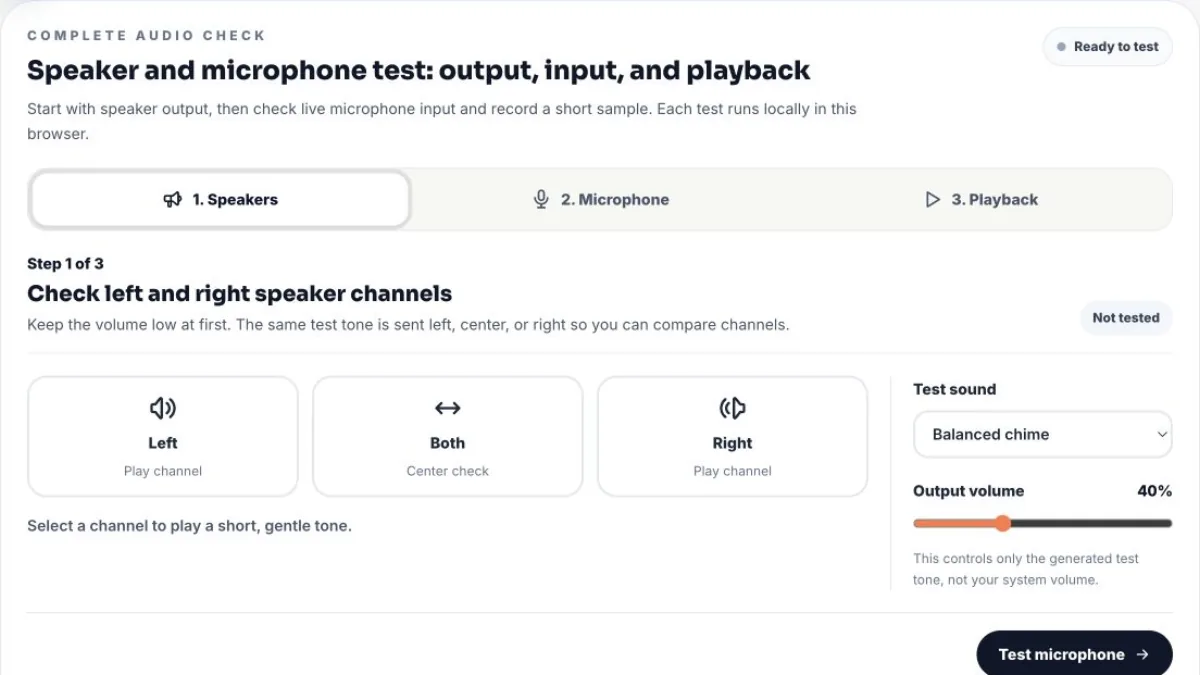
Open the microphone permission guideCheck left and right speaker channels
Not testedSelect a channel to play a short, gentle tone.
Step 2 of 3
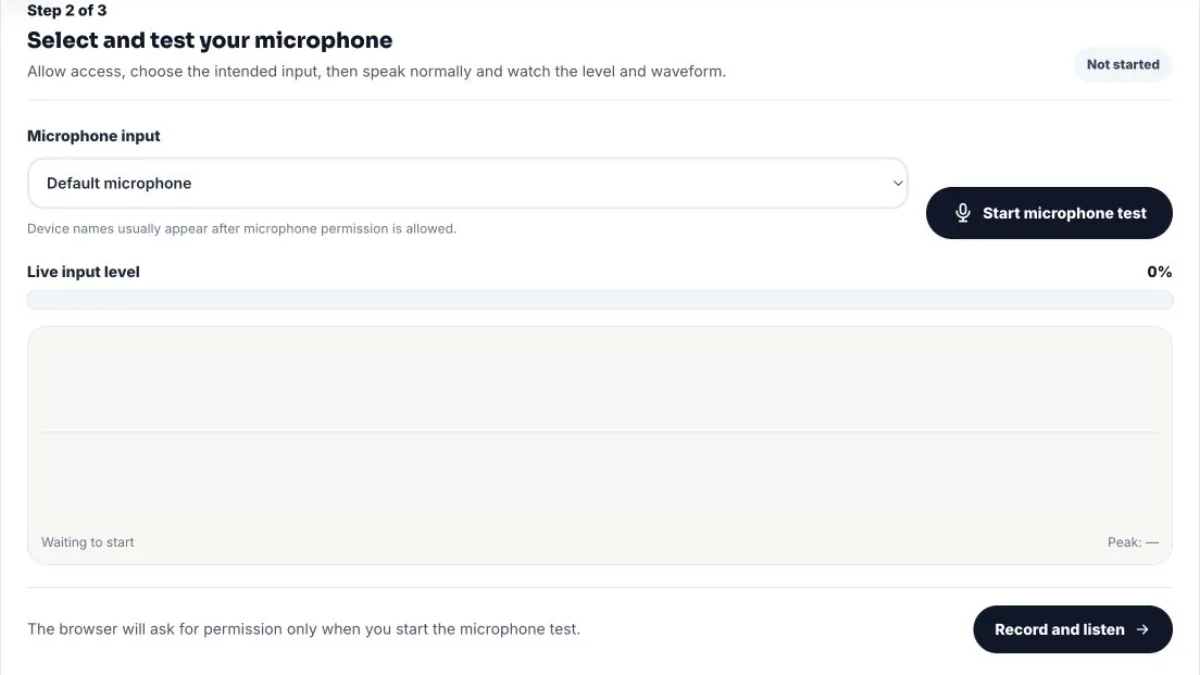
Select and test your microphone
Not startedDevice names usually appear after microphone permission is allowed.
The browser will ask for permission only when you start the microphone test.
Step 3 of 3
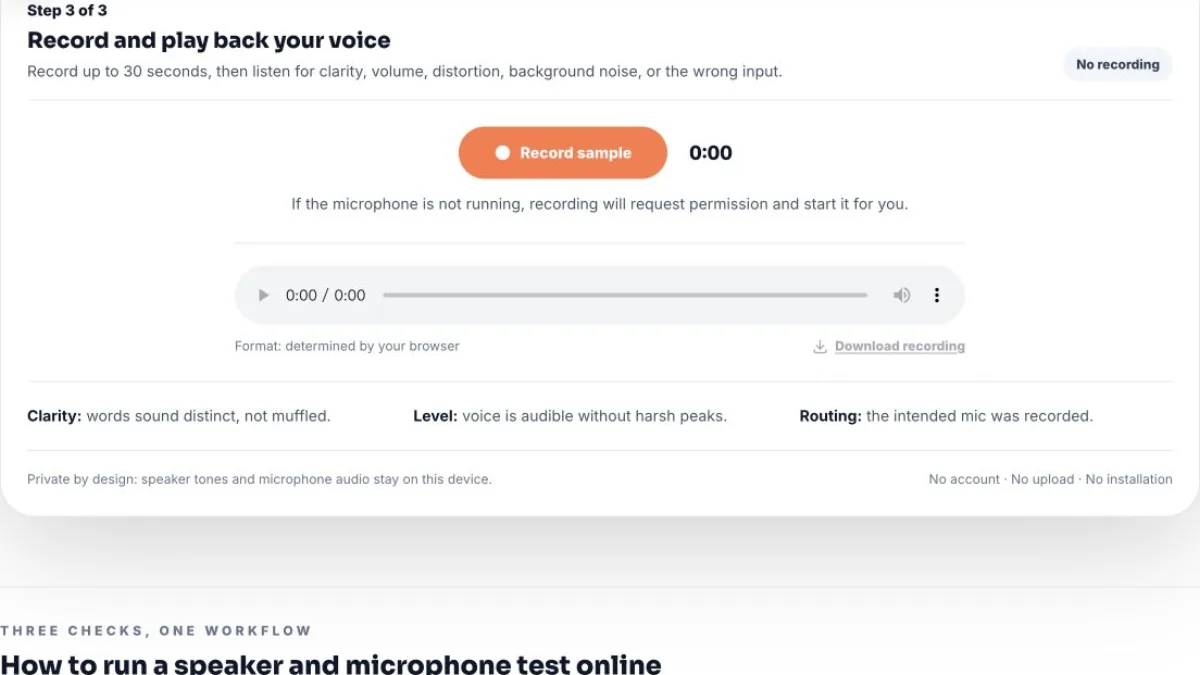
Record and play back your voice
No recordingIf the microphone is not running, recording will request permission and start it for you.
Clarity: words sound distinct, not muffled.
Level: voice is audible without harsh peaks.
Routing: the intended mic was recorded.
Run one speaker and microphone test to check left and right sound, select your microphone, watch its live waveform, and record a sample for playback. It is free, requires no account, and keeps your audio on this device.
THREE CHECKS, ONE WORKFLOW
How to run a speaker and microphone test online
A reliable speaker and microphone test checks output before input. Play a controlled signal through each speaker, verify that the selected microphone reacts to your voice, and finish with recording playback. This order separates silent speakers, blocked input, and poor recording quality instead of treating every audio problem as the same fault.
STEP 1
Test the left and right speakers
Play the same gentle signal through the left, both, and right channels. Confirm that each side is audible and that the centered signal sounds balanced.
STEP 2
Select and test the microphone
Start the microphone test, allow access, choose the intended input device, and speak while checking the live level and waveform.
STEP 3
Record and play back a sample
Record a normal sentence for up to 30 seconds, then play it back to judge clarity, level, background noise, distortion, and microphone routing.
READ EACH RESULT
What each part of the speaker and microphone test tells you
In this speaker and microphone test, the three panels answer different questions. Speaker tones confirm where browser output is routed, the live meter confirms that an input signal exists, and playback reveals how the recording actually sounds. Use all three before deciding that a headset, laptop, or meeting app is broken.
What does a good speaker and microphone test result look like?
A good result means both speaker channels are audible in the correct position, normal speech produces a stable microphone waveform without constant clipping, and the recorded sample is clear at a comfortable volume. The tool cannot physically measure whether a speaker cone moved or decide whether your voice sounds pleasant; it gives you controlled signals and direct playback so you can make that judgment accurately.
Speaker output
Left plays on the left, right plays on the right, and the centered signal sounds equally present on both sides. Unexpected routing usually points to balance, cable, Bluetooth, or system output settings.
Microphone input
The meter rises with speech and falls in silence. Repeated red-level peaks suggest excessive input gain; a flat line after several seconds suggests mute, permission, routing, or hardware trouble.
Playback quality
Your words are understandable without harsh crackle, severe room echo, or pumping volume. Compare a second input if the recording sounds distant or if a Bluetooth headset enters low-quality call mode.
Test mic and speakers before Zoom, Teams, or Google Meet
Complete the speaker and microphone test before opening an important meeting. Use the same headset or USB microphone you plan to use on the call, record one normal sentence, and confirm both output channels. Then open Zoom, Microsoft Teams, or Google Meet and match its input and output selections to the devices that worked here.
A browser result and an app result can differ because meeting software may select another device or enable echo cancellation, noise suppression, automatic gain, or Bluetooth hands-free mode. If this page works but the meeting app does not, focus on the app's device menu and operating system permissions rather than replacing the microphone. For a longer checklist, use the pre-call microphone guide.
FIX THE FAILED STEP
Speaker or microphone not working? Isolate the cause
If the speaker and microphone test fails, do not change every audio setting at once. A failed speaker step points to output volume, routing, balance, connection, or hardware. A failed microphone step points to permission, input selection, mute, another app, or system privacy settings. Playback problems begin only after input is detected and often reveal quality or processing issues rather than complete device failure.
No sound from either speaker
- Confirm the operating system output device and raise system volume gradually.
- Check hardware power, mute controls, cable connections, and Bluetooth routing.
- Unmute this browser tab and try the centered tone in another current browser.
Only one speaker channel works
- Set left-right balance to the center in the operating system accessibility or sound settings.
- Reconnect the cable or headset and inspect adapters that may carry only one channel.
- Compare another headset or speaker pair to separate output settings from hardware failure.
Microphone permission is blocked
- Allow microphone access in the site controls beside the address bar, then reload.
- Check Windows, macOS, iOS, or Android privacy settings for browser microphone access.
- Open the page directly in Safari, Chrome, Edge, or Firefox instead of an in-app browser.
Input exists but playback sounds poor
- Move 10–15 cm from the microphone and lower gain if loud speech clips.
- Reduce fan noise, hard-room reflections, and contact noise from the desk or cable.
- Compare another input and read the microphone quality test for deeper checks.
How this private browser audio check works
The speaker controls generate a short stereo WAV signal in browser memory, with samples placed in the left, both, or right channel. The output volume slider changes only that generated signal. Your operating system still decides which physical speaker, headset, monitor, or Bluetooth device receives it.
After you grant permission, the microphone panel uses the browser media-device API to open the chosen input. An analyzer calculates a live level and draws the waveform; it does not send audio to a server. The playback step uses MediaRecorder when the browser supports it and creates a temporary local file URL. Stopping the stream releases the microphone, and closing the page removes the temporary recording URL.
This speaker and microphone test is a practical routing and quality check, not calibrated laboratory equipment. It cannot measure physical speaker loudness, certify frequency response, or guarantee how another app will process audio. Those limits are intentional: the page reports only what a normal browser can test honestly.
Speaker and Microphone Test FAQ
These answers cover the most common mic and speaker test questions, browser limitations, and device failures.
How can I test my microphone and speakers online? +
This speaker and microphone test starts with the left, right, and centered speaker tones. Then you start the microphone, select the intended input, speak while watching the live waveform, and record a short sample to hear the result. This checks output and input without installing software.
Is this mic and speaker test online free? +
Yes. The speaker and microphone test is free, requires no account, and has no test limit. The browser generates the speaker tones and processes the microphone stream locally on your device.
Why can I hear the left speaker but not the right speaker? +
First check the system balance control and confirm both speakers or both sides of the headset are connected. Then replay the same tone on each side. If one side stays silent across browsers and apps, test another cable, port, or headset to isolate a hardware problem.
Why is there no sound during the speaker test? +
Check system volume, hardware mute controls, the selected operating system output, and whether this browser tab is muted. Bluetooth audio may also be connected to a different device. Start at a low volume, raise it gradually, and replay the centered tone.
Why is my microphone not detected? +
The most common causes are blocked browser permission, the wrong input device, a hardware mute switch, or another app using the microphone. Allow access, choose another input from the list, close Zoom or recording apps, and start the microphone test again.
Why did the browser not show a microphone permission prompt? +
A previous Block choice can suppress the prompt. Open the site controls beside the address bar, change Microphone to Allow, and reload. Microphone access also requires HTTPS, and some in-app browsers do not support the permission flow correctly.
How can I test my mic and hear myself? +
Open the Playback step and record a short sentence. When the recording is ready, use the audio player to hear exactly what the selected microphone captured. Playback is safer than live monitoring through speakers because it avoids feedback.
Can I choose which microphone to test? +
Yes. Allow microphone access first so the browser can reveal device names, then choose a built-in, USB, headset, webcam, or Bluetooth microphone from the input list. Changing the selection while testing restarts the input stream with that device.
Can this page choose a specific speaker or output device? +
Not reliably in every browser. The test tone uses the output device selected by your operating system or browser. If sound goes to the wrong speakers, change the system output first, then replay the left and right channel tests.
How do I test my mic and speakers before Zoom, Teams, or Google Meet? +
Complete all three steps here, then open the meeting app and select the same microphone and speaker devices in its audio settings. A successful browser test proves the hardware and browser path work, but the meeting app can still use a different device or apply its own processing.
Does the speaker and microphone test work on phones and laptops? +
Yes. The speaker and microphone test works on current desktop and mobile browsers that support audio playback and microphone access. Laptops, iPhone, iPad, and Android devices can use it, although mobile browsers may hide some device names or restrict audio output selection.
Is my microphone recording uploaded or stored? +
No. The microphone stream, waveform, and recording stay in your browser. A temporary local playback URL is created only after you record, and the file leaves the page only if you choose Download. No microphone audio is uploaded by this tool.
Run the speaker and microphone test again
Retest after changing a cable, Bluetooth route, input device, permission, or system volume so you can confirm which change solved the problem.
Back to the audio test